Tag Archives: Xerte

New Bootstrap themes and options in Xerte 3.6

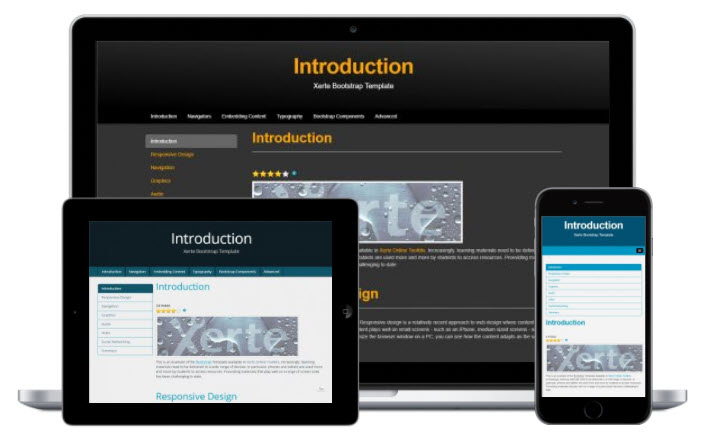
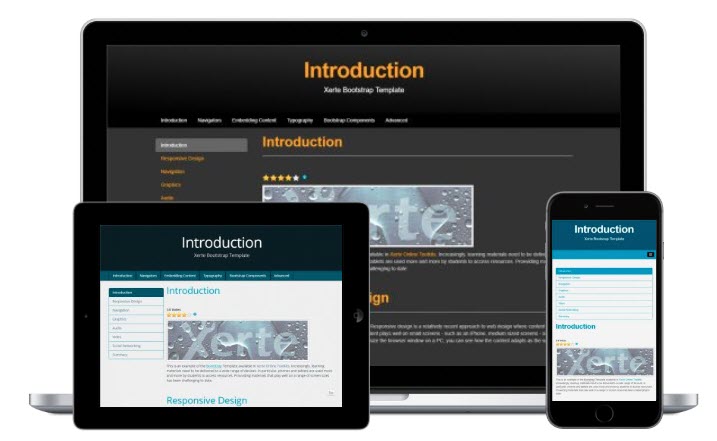
Themes on different devices

In addition to the new XOT template themes I mentioned in an earlier post, with the release of Xerte Online Toolkits v3.6 we’ve added the ability to add Bootstrap template themes to an installation and I’ve created a handful that are included in the new release. Those shown are Dark: Black & Grey, Flat:
Apereo and Flat: Blue & Grey.

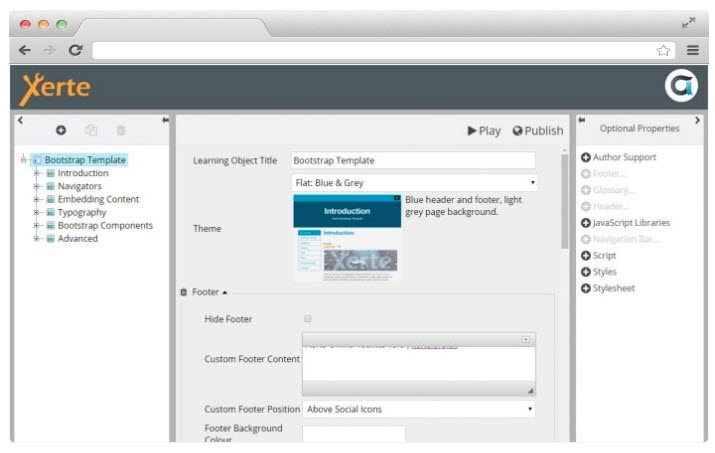
We’ve also added a raft of new options including the following:

  • Footer options: add a custom footer, change the footer background colour and choose whether the custom footer appears above, below or replaces the social icons.
  • Glossary options: including the ability to display a combined glossary page at the end of the LO.
  • Header options: including left and right logo and image positions and also the ability to change the header image and other properties for each page.
  • Navigation bar options: including background, text and hover colour and also options to display the navbar above or below the header.
  • Social options: – you now have the ability to show/hide each individual sharing icon.

You can see some of these grouped options in the screenshot below.
Finally there’s also an even easier way to add XOT projects to your Bootstrap pages including control over whether to hide the header and/or footer of those XOT projects.
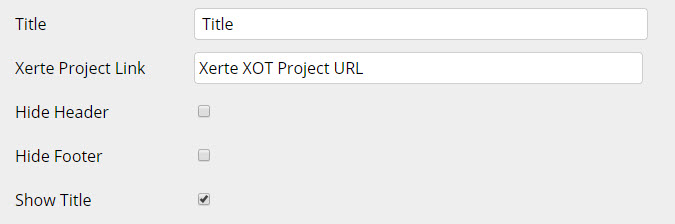
New insert xot project options

You simply have to paste in the public url to your XOT project and choose whether to hide the header and/or footer.

You might wonder why you would want to hide the footer as that contains the navigation?

Well it means you can embed a specific page by including resume= or page= in the url, or simply add a single page multiple choice interaction, or multi-question quiz, or indeed any of the XOT interactions as a single part of your bootstrap page.

I/we hope you like these new features?
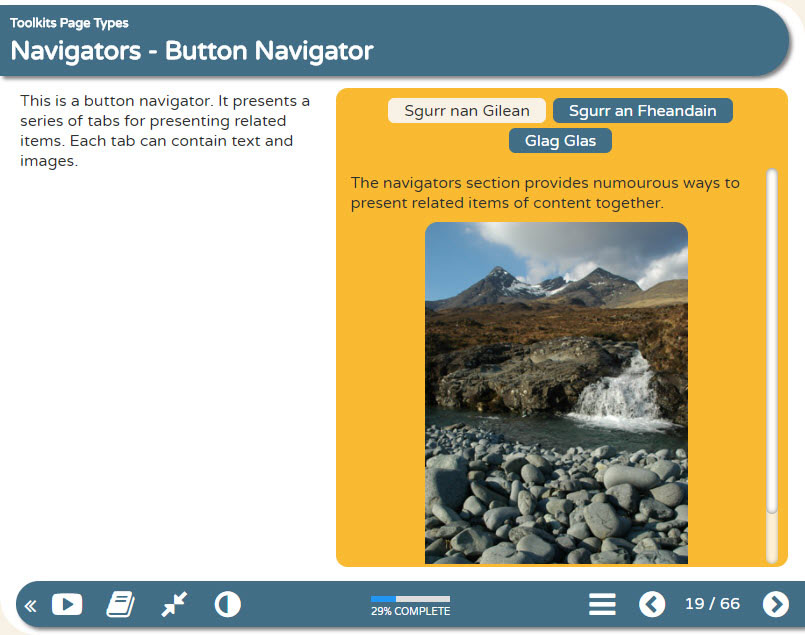
New XOT template themes available in Xerte 3.6

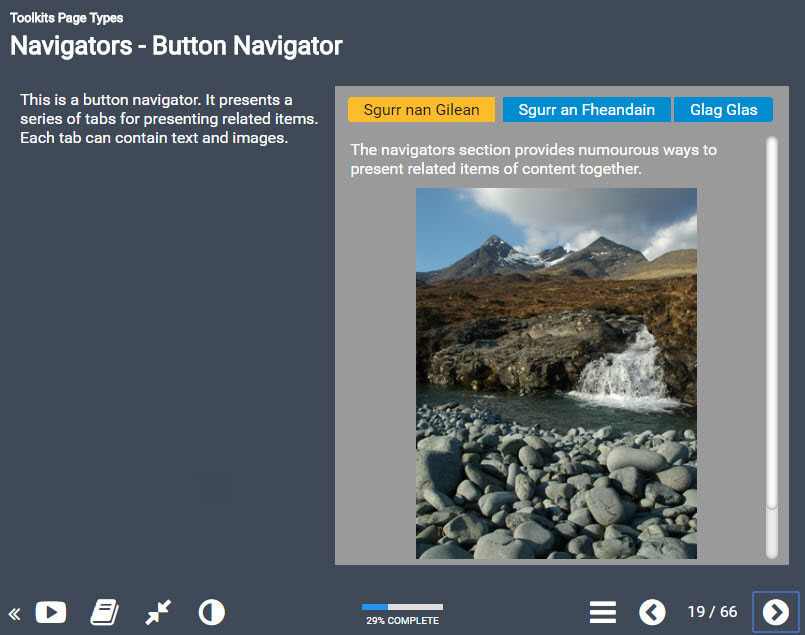
There will be a number of new themes available with the release of Xerte 3.6. I’ve been working on these on and off for quite some time and some I’ll be keeping for exclusive use by the organisations that contract me to support their use of Xerte and therefore contribute to these developments, but a few will be part of the public release including the selection shown below.

Modern: Urban Blue

Modern: Urban Blue

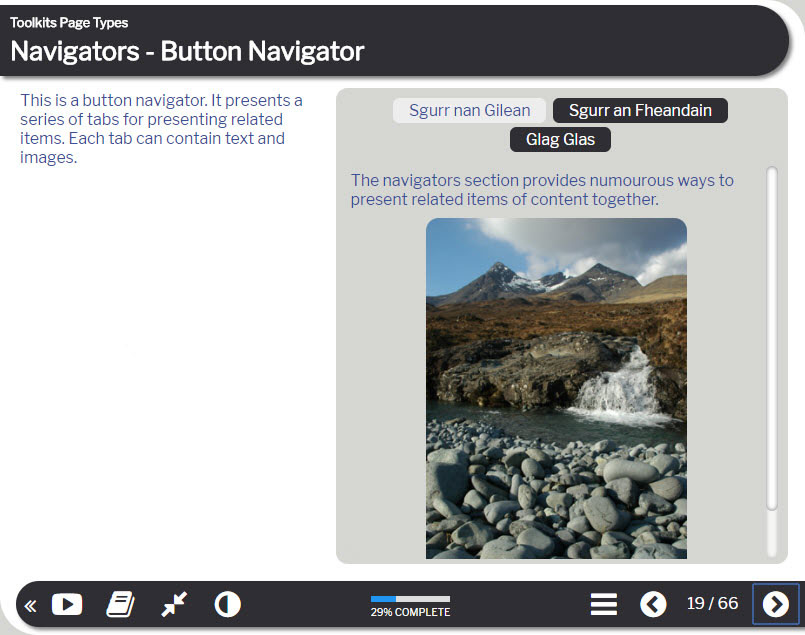
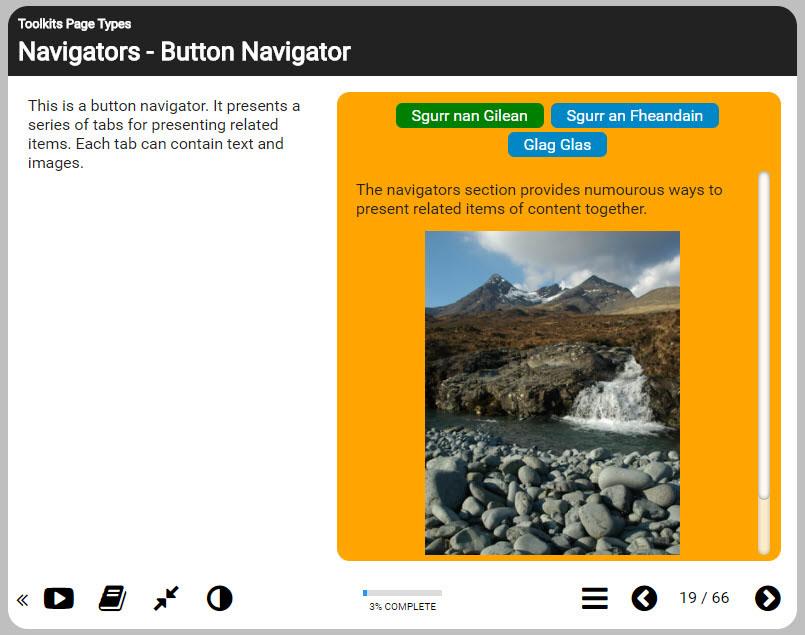
The great thing about Xerte themes is the ability to quickly select and try a different theme via the editor and that doing so is non-destructive. e.g. you can change your learning object back and forth between different themes without breaking anything. You can see this via the example above comparing the original default XOT theme with one of the new themes named Modern: Urban Blue.

The other development we’ve introduced with these new themes is the use of Font Icons rather than image buttons both in the footer and on many of the different page types. This makes customising themes via css or via the xhibit app far easier and we’re planning sessions on this during the Xerte conference in June.

Other new XOT template themes coming in v3.6 include the following:

Modern: Sleek Grey

Modern: Sleek Grey

Modern: RGBO

Modern: RGBO

Dark: Blue Grey

Dark: Blue Grey

There will also be a few other new themes in v3.6 not shown here including some new themes for the Bootstrap and Decision templates.  I’ll share details of those in a separate post.

Watch out for further news about the forthcoming release here and via our various community channels.

How to reduce the size of your Xerte projects and help your server admins too!

This is a topic that seems to crop up more and more now given that Xerte is so well established in many organisations with lots of staff and even students authoring Xerte projects and in a way is a good problem to have because it often reflects wider and more effective use. However all those users  and their projects can mean ever increasing storage requirements especially if those users don’t manage their projects and remove unused media and other files no longer required.

The good news this is a quick and easy process for users to undertake and will help when authoring and exporting too. For an example see the embedded video below or the text instructions below the video.

Transcript/instructions:

Often during authoring of Xerte projects we try different media and other ‘uploaded’ files until we are happy with how our project looks and works and it’s very quick and easy to do so which is great! However it’s also all too easy to just leave previous and unused files in place taking up unnecessary space on the server and in our projects, which has an impact on export size too.

In recent versions of Xerte we can see the overall size of a project in the ‘Project Details’ pane and here we see an example which is currently 40.06MB in size but can quickly and easily be reduced.

  1. With the project select in the workspace click the properties icon.
  2. Select the Media and quota tab
  3. and click the delete symbol alongside any files shown as ‘Not in use’ that we know we don’t need in this particular project now or in future.
  4. You can view the current project size at the bottom of the media and quota list and this is also updated in the ‘Project details’ pane which now shows the project is reduced to 20.9MB so half the size it was previously.

If you have even a relatively small number of projects this quick and easy clean up process can make a big difference to the storage space taken up on the server especially when all users undertake to do this too!